
Previously: Install Netscape Navigator 4.04 for Windows 3.11
Set up an NE2000 for internet connection in DOSBox-X and Windows 3.11
If you will use the pcap backend install the Npcap on Windows in winpcap compatibility mode – will ask for this at the install process. Sometimes that backend works, sometimes the slirp depending on your situation. For me my LAN works with pcap is on my Windows 10 machine, my Wi-Fi works with slirp on my laptop with Windows 11. When you use pcap you need to go to the Help -> List network interfaces and check for your real network card index and set that in the pcap in the Configuration tool instead of list.
You have to install the SLiRP library on Linux, on Debian 12 you just run sudo apt install libslirp0.
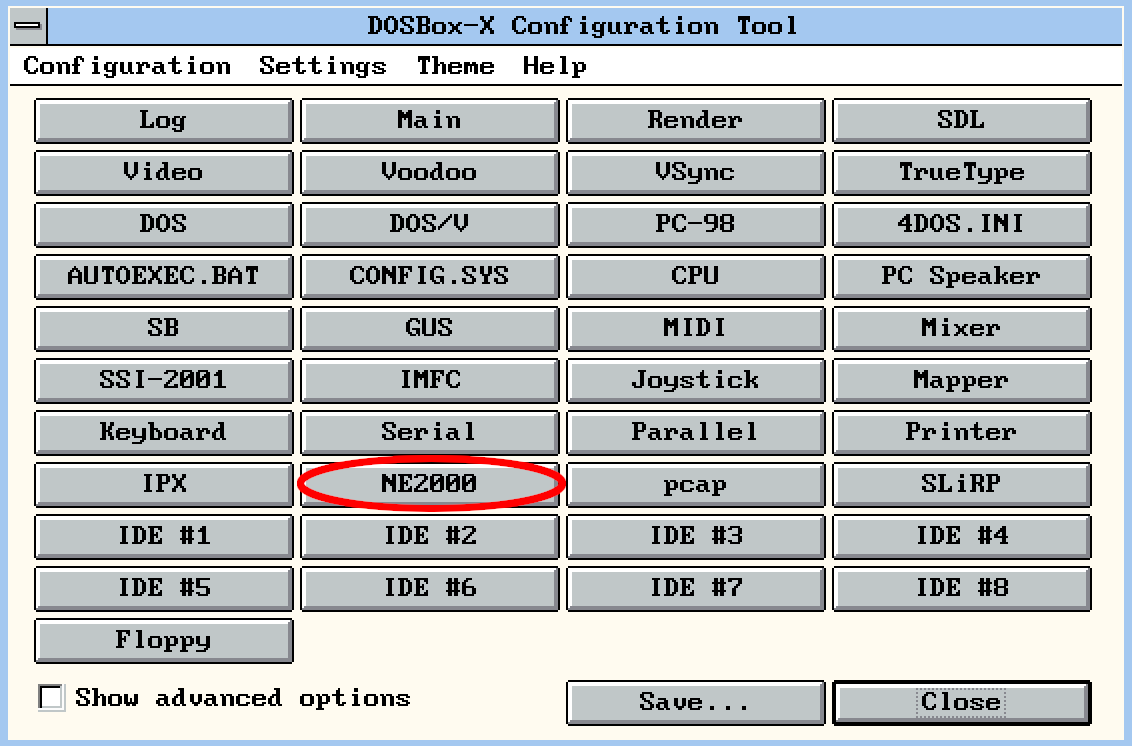
Start our network driver for our virtual network card called NE2000. Go to our Main -> Configuration tool, then click on the NE2000 button.
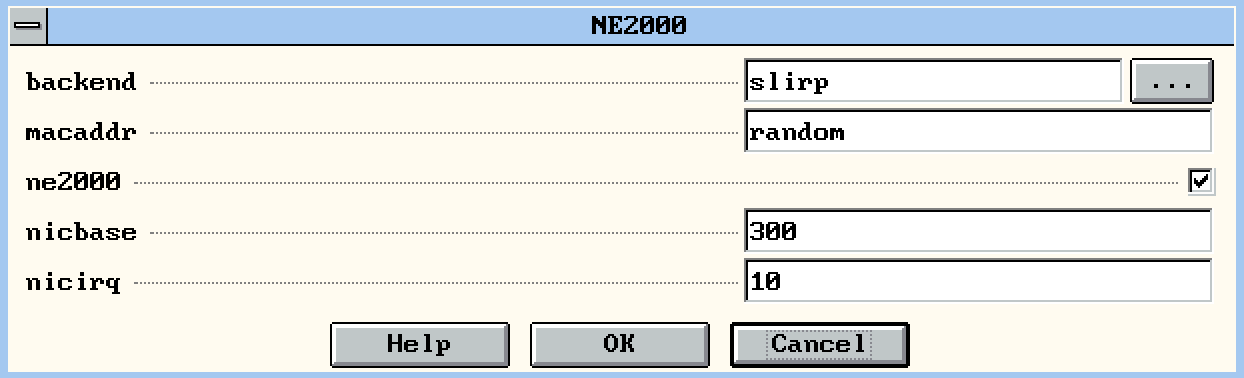
Set the backend to slirp, the ne2000 should be checked, nicbase should be 300, the nicirq should be 10!
We should start up the driver, so put this line into your AUTOEXEC.BAT with the help of the configuration tool after the mount command:
z:\system\ne2000 0x60 10 0x300
The first parameter is the software interrupt number in hexadecimal (should be 0x60), the second is the nicirq the third is the nicbase.
We will need the mTCP tools for having the dhcp command: download the mtcp.zip from https://www.brutman.com/mTCP/
Unzip it to your mounted folder like C:\Users\gopher\DosBox\MTCP then run rescan in your DOSBox console so it will be visible inside the emulator. In your AUTOEXEC.BAT set the path of the configuration file like set mtcpcfg=c:\mtcp\samples\sample.cfg. Then call the c:\mtcp\dhcp at the end.
Your AUTOEXEC.BAT should look like the following now:
mount c "c:\Users\gopher\DOSBoxInternet"
set mtcpcfg=c:\mtcp\samples\sample.cfg
path c:\windows
c:\ne2000 0x60 10 0x300
c:\mtcp\dhcp
After OK, Save, then Save & Restart you should see the following outputs:
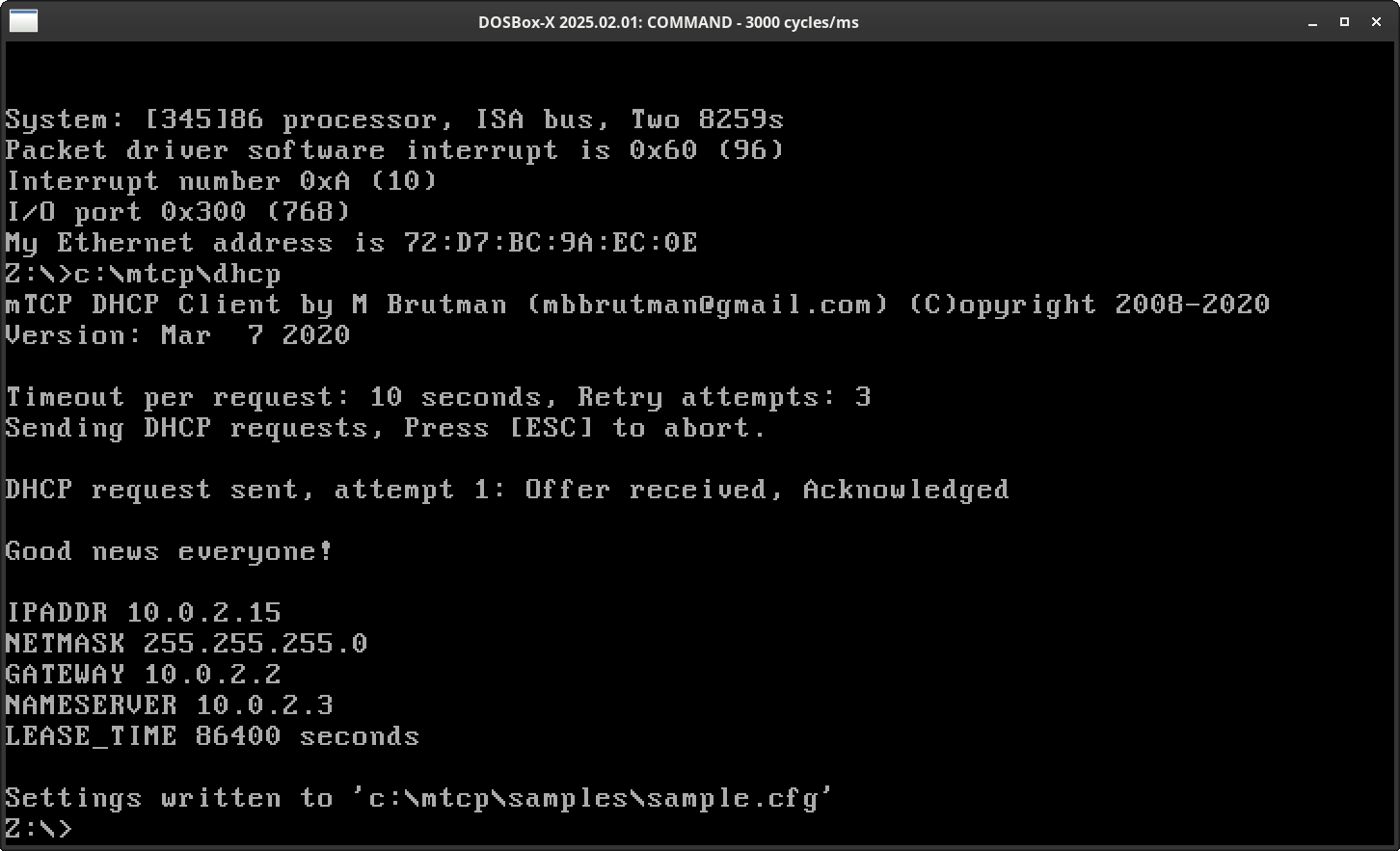
One important line is the My Ethernet address is... It should NOT be FF:FF:FF:FF:FF:FF because then it means your card was not found.
The second one is the Good news everyone! line, it means you got an IP address.
Now that you have a working IP address in DOS as last step we will need the Trumpet Winsock 1.0 so we can use it from Windows 3.11. You can find it on https://www.uselesssoftware.com/download/winsock-zip
Unzip it, then copy to your mounted folder like C:\Users\gopher\Dosbox\TRUMPET, then run rescan in your DOSBox console.
Add the path into your AUTOEXEC.BAT like path C:\WINDOWS;C:\TRUMPET after your mount line, then call the winpkt 0x60 BEFORE your dhcp line.
mount c "c:\Users\gopher\DOSBoxInternet"
set mtcpcfg=c:\mtcp\samples\sample.cfg
path c:\windows;c:\trumpet
c:\ne2000 0x60 10 0x300
winpkt 0x60
c:\mtcp\dhcp
After Save & Restart just write win for start Windows, then start your C:\TRUMPET\TCPMAN.EXE. You should get the Trumpet setup window, use the values from the DHCP output (IPADDR, NETMASK, etc.):
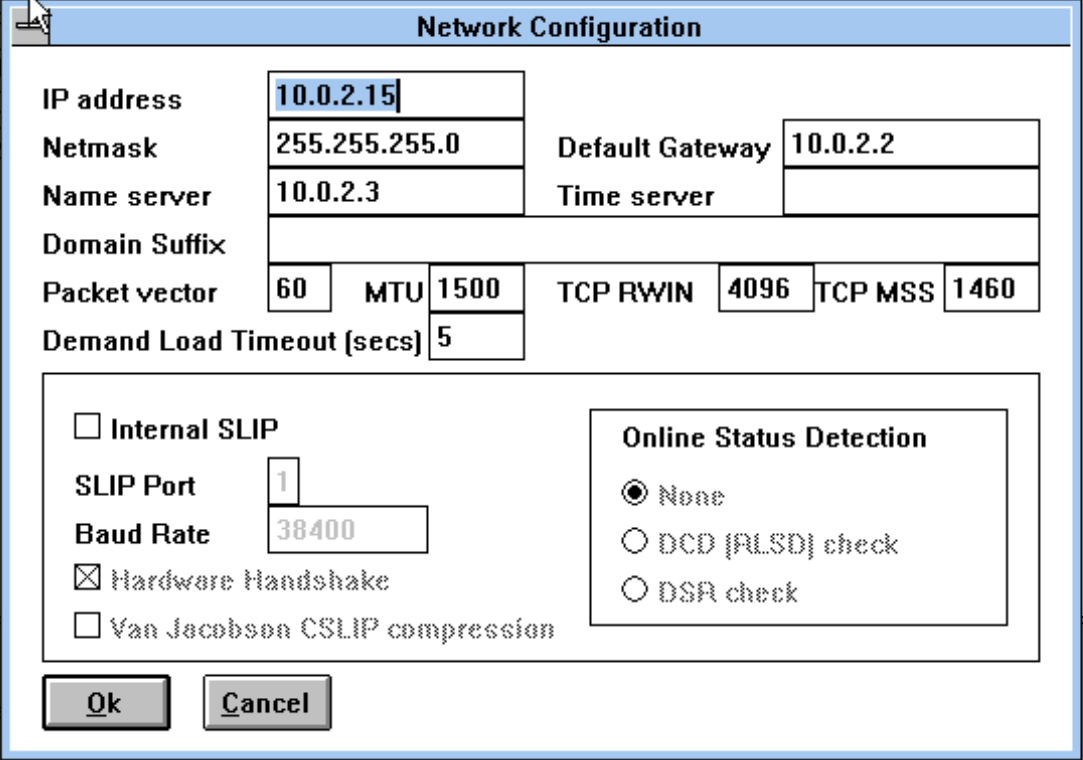
Hit OK, then you will get this message:
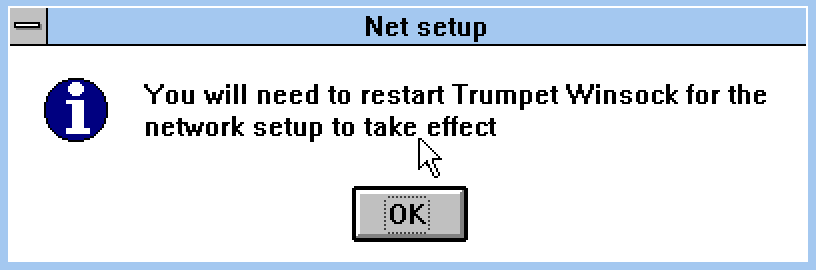
Hit OK again! Quit Windows, then restart your DOSBox-X just to be sure.
Run win then run the Netscape Navigator. Now it should start up, still with an error BUT you write theoldnet.com into the URL bar, and you should finally see the homepage of theoldnet.com!
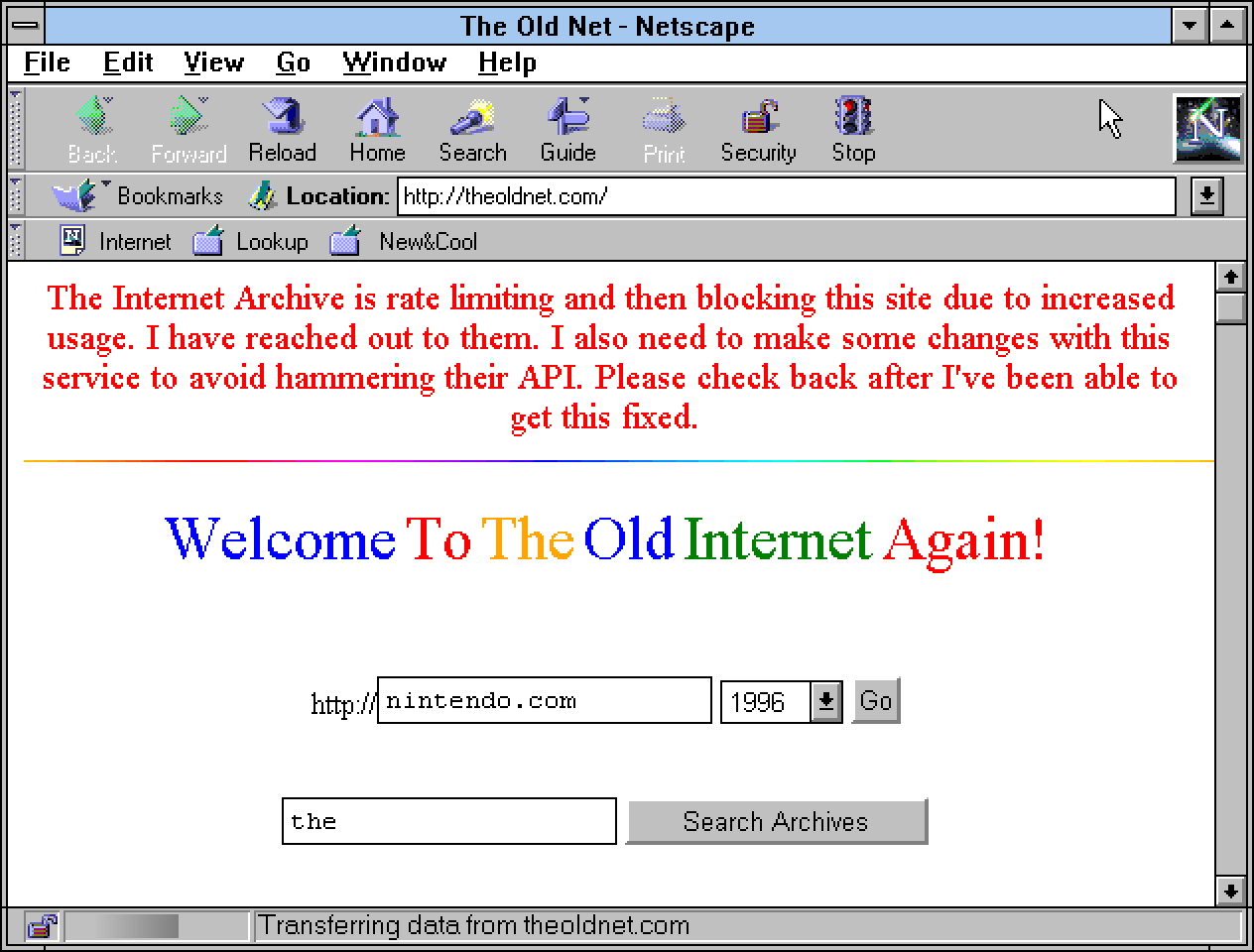
Congratulations! You have a working internet in your DOSBox-X! 🙂
On the next page you can see a shortened version all of this tutorial.
